Upload Data
This page allows a user to ingest multiple flat files and multiple sheets at the same time.
1. Standard Template Download
- Users can download a country-specific Excel template with predefined headers based on the mapping for the entity-jurisdiction.
- You can send this to your client for them to complete instead of the standard template.
Not seeing a mapping? Ensure you have created the mapping for your entity-jurisdiction.
2. Use an Existing Upload
If your client is uploading data to Abacus, you will be able to ingest the data directly into the wizard using this step. Select the client-uploaded flat files you would like to ingest into Abacus. The client files are sorted by creation date.
Users will only be able to select a source file that is not yet ingested
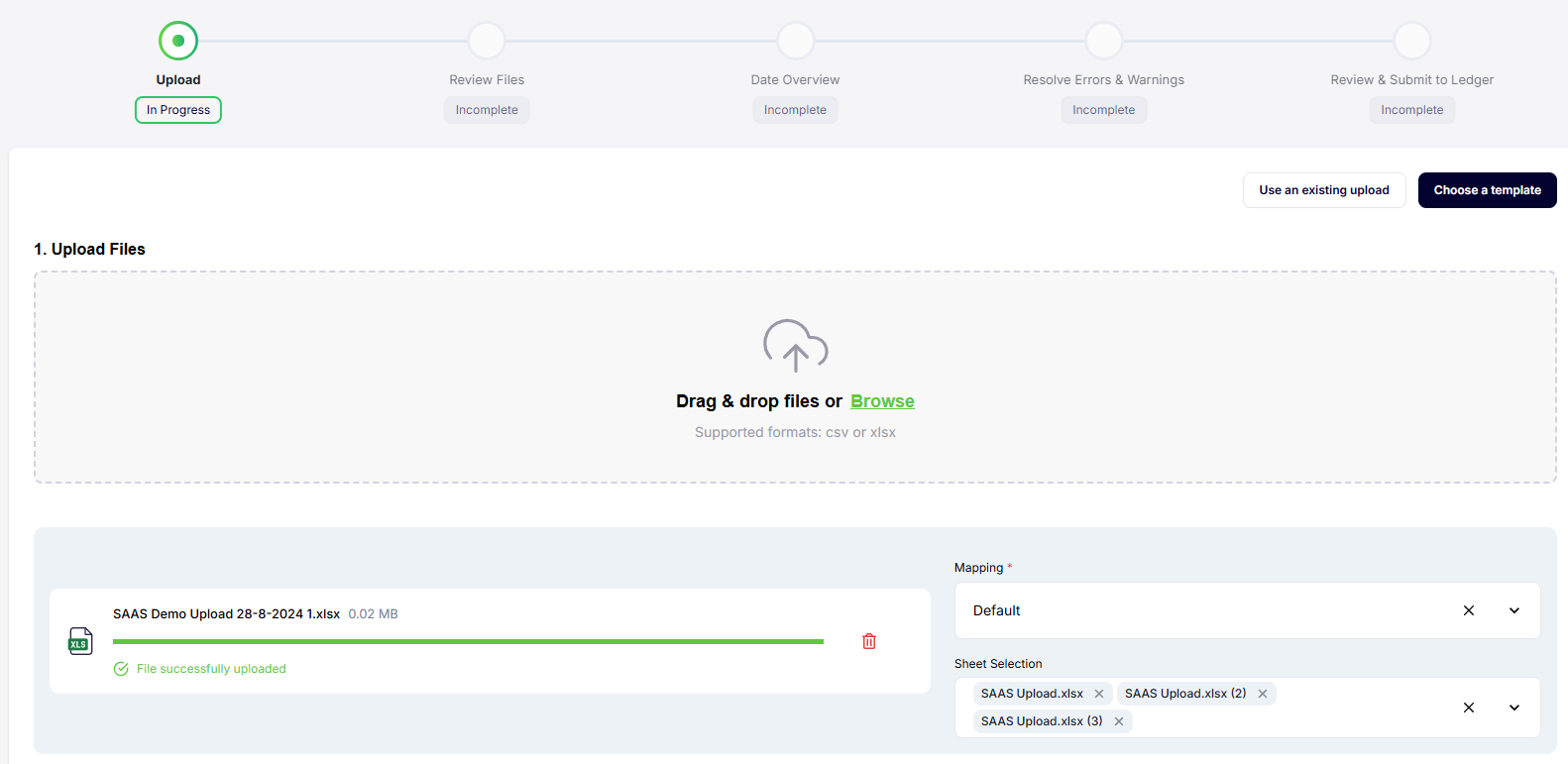
3. Uploading Files
The upload process is simple and requires you to select the flat file, sheets, and mapping required. Progression past this page is not possible without all of the above.
Steps for ingestion:
- Select the file(s) you want to upload and the relevant sheet(s) which have the data to be ingested.
- Select the flux mappings for each source file. If you do not see the mappings in the dropdown, create a new mapping.
- Once you have uploaded all the relevant files, press Upload File.
Ingestion progress:
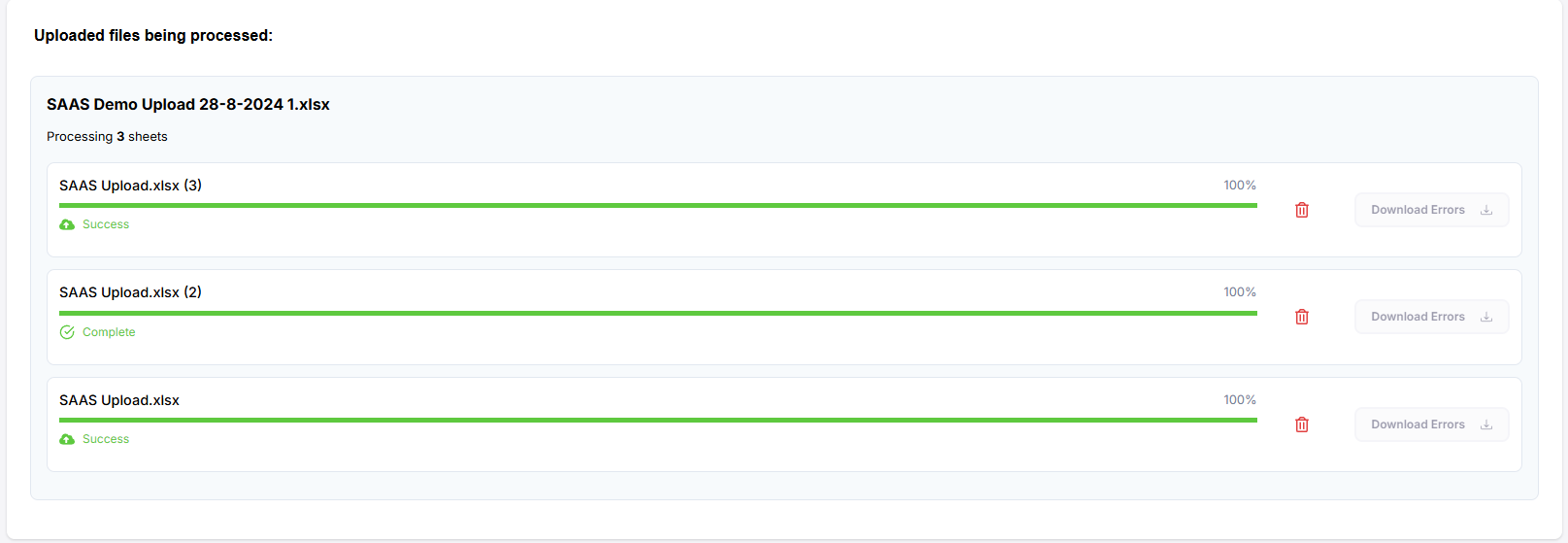
While loading, it will inform you that your data is being processed per sheet and give you the status of your upload, as well as the % completion of the upload.
Each sheet is evaluated independently and can have the following statuses:
| # | Status | Explanation |
|---|---|---|
| 1 | Complete | The upload was successful, and no flux-breaking errors were present. |
| 2 | Unlinked transactions | This is for transactions that have invoice/reporting dates that are not linked to a filing. |
| 3 | Headers do not match | The headers of the Excel file are not in line with the mapping selected. |
Users will only be able to proceed to the next page if all sheets are in a Complete or Unlinked transactions state, a user can proceed using the Proceed button.
If a user is blocked from proceeding, they can delete the sheet that has an invalid status to proceed, or they can use Reset and Retry once the issue has been resolved.
FAQ: Can you go back and upload more data once you have clicked Upload File?
Yes, you can append more data into an in-progress wizard, but you can’t add data to a completed wizard. If users need to add more data, a new wizard can be started.