Review & Submit to Ledger
This page allows a user to check that all their data is accurate and error-free once they have been through the wizard. It gives you a preview of which filings will be impacted and what draft returns would look like if you submit to the Ledger.
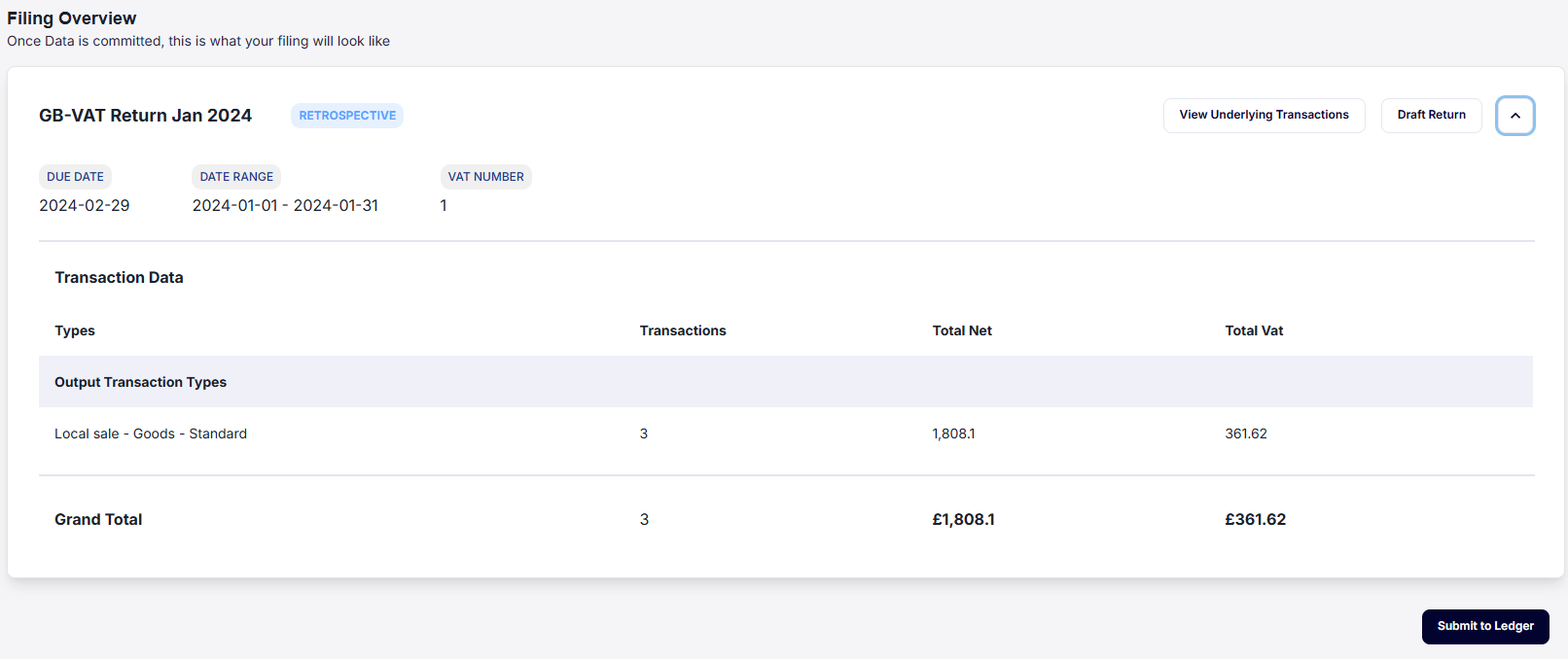
The aggregated and filing data is based on data uploaded to the system. The user will see all data from the current upload and any previous uploadsthat impacted filings.
1. Download Data
Users can download data for the transactions in the filings, after which it is sent via email to the user.
2. Draft return
Using the Draft return button, a user can preview and download the draft return to ensure it is correct before submitting the data to the ledger.
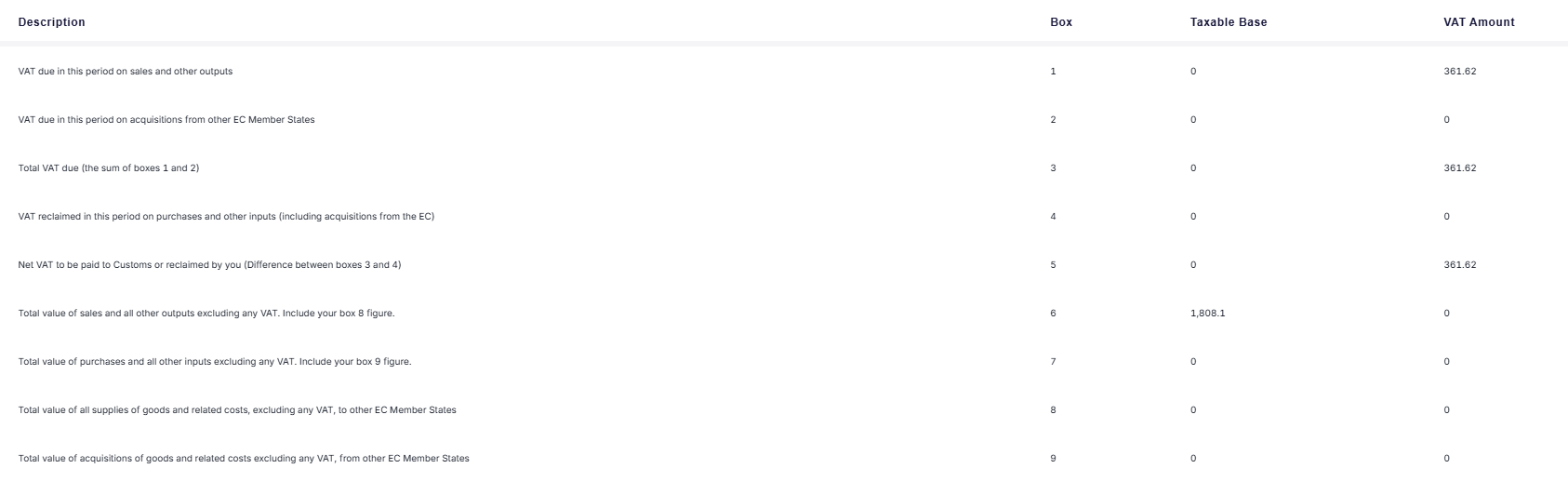
3. View underlying data per filing
The View underlying transactions button redirects you to the Transactions page and shows all the transactions linked to the filing.
This can include transactions that were not uploaded as part of the wizard, as it is filing specific
4. Submit to Ledger
Once you have reviewed all your data and it is ready to be submitted to the ledger, use the Submit to ledger button to commit the transactions to the taxLedger.
Once you have submitted, you will receive a summary of any impacted filings.
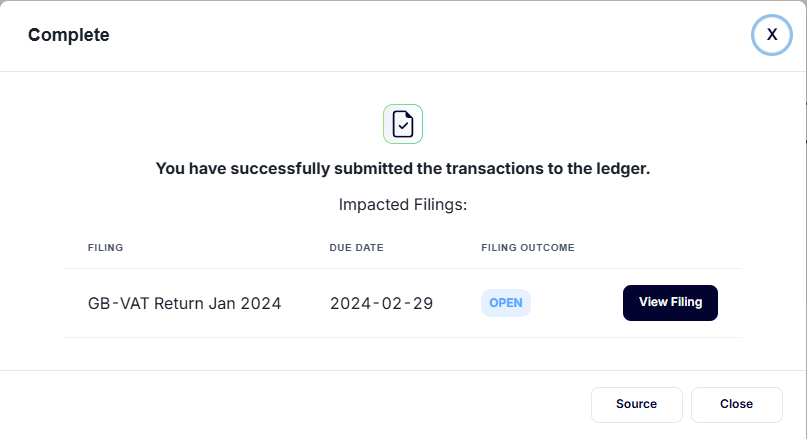
The system will now begin processing the transactions to the My taxLedger. This may take a moment to process the transactions.
The Submit to ledger button will now become a View impacted filings button, where users can navigate to the filings.
Users can now proceed with the relevant filings via the Filing Modal.