Date Overview
This page is to evaluate the month transactions are linked to and hence the filings impacted by the transactions. It also provides an overview of the errors and warnings present. From this page, the user can perform bulk actions per month, including deletion, changing the reporting period, and viewing underlying transactions.
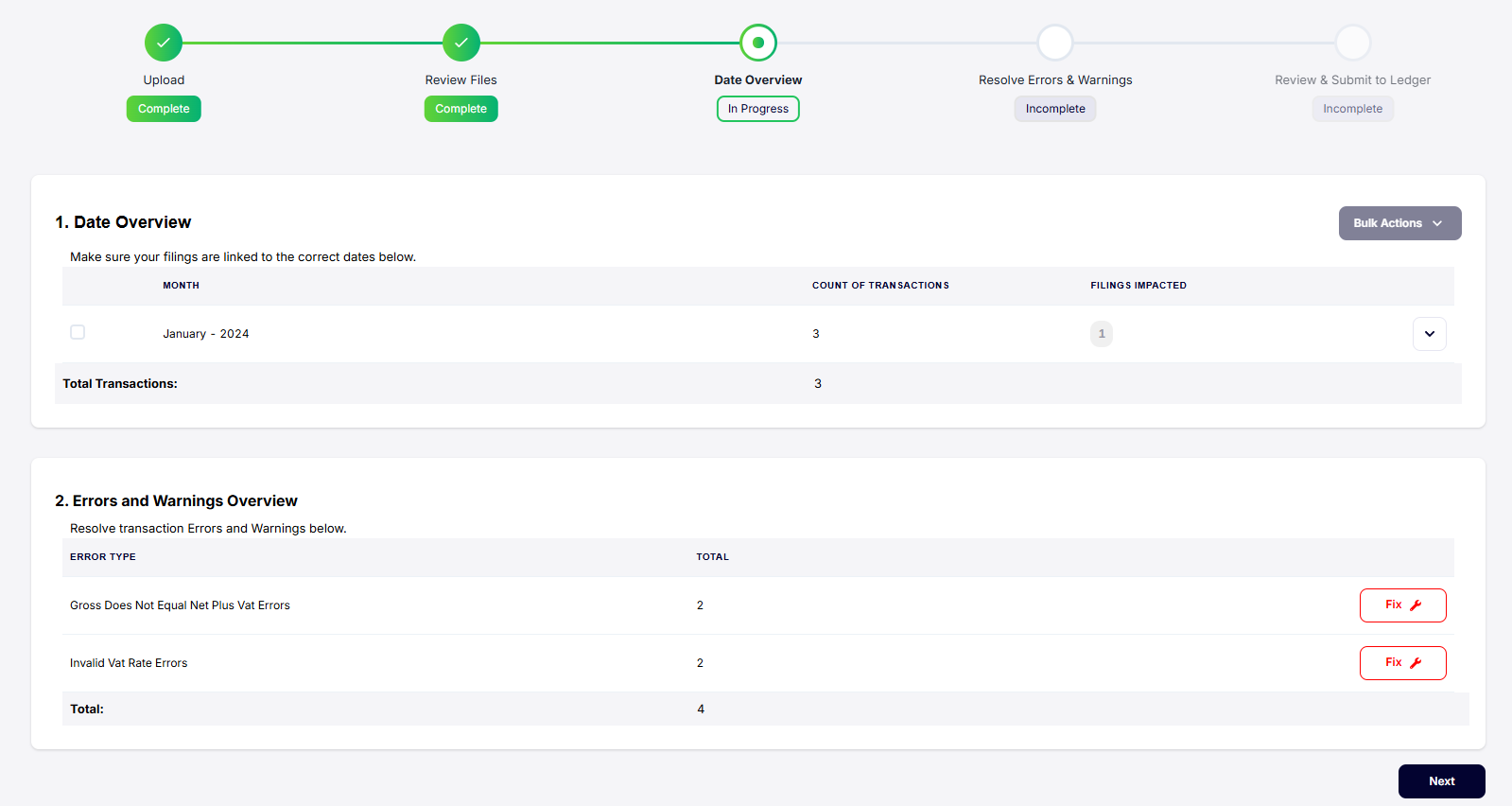
1. Change reporting period
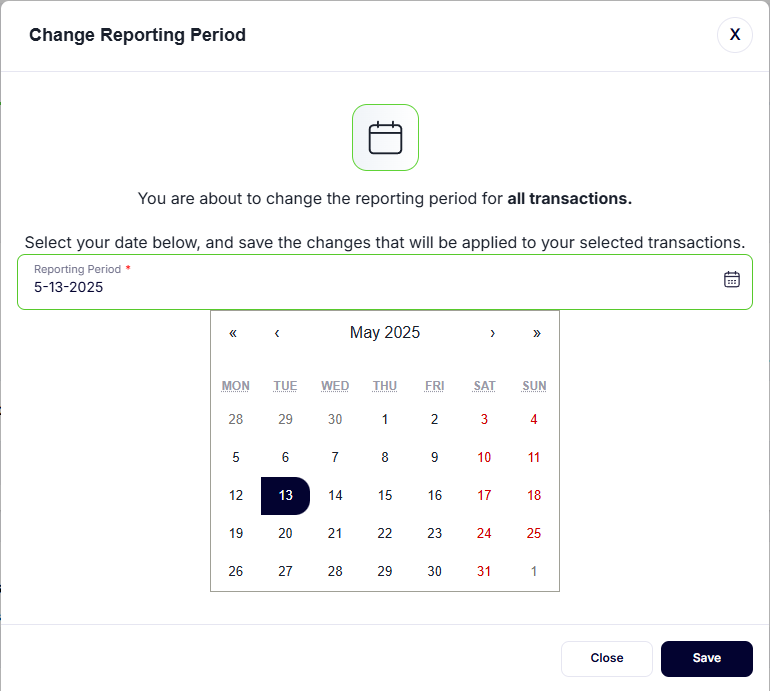
The change reporting period bulk action will change the reporting period for all the transactions in a given month. The user must select the required date for the reporting period.
- Select the month you want to change. A tick indicates which filing(s) you have chosen to correct or view.
- Click Bulk Actions and choose Change Reporting Period.
- Select the new/correct reporting period and click Save.
A notification will highlight that ‘reporting period has been changed’.
2. View underlying transactions
View underlying transactions allows a user to investigate the transactions for a given month. Manual edits can be performed on the following:
- Select the month you want to change. A tick indicates which filing(s) you have chosen to correct or view.
- Click Bulk Actions and choose View underlying transactions.
3. Delete transactions
- Select the month you want to change. A tick indicates which filing(s) you have chosen to correct or view.
- Click Bulk Actions and choose ‘Delete Transactions’.
- Deleting data cannot be undone.
4. Errors and Warnings Overview
This section provides a summary/aggregate of errors/warnings and the total count of errors/warnings. Click Fix to take you to the Resolve Errors and Warnings page where errors can be resolved quickly through bulk actions.